Credits Usage
A statement of your credits: everything that was added to your balance, and every run that used credits, one line per run.
What this page is forCheck your balance and what each project run cost.
Open it fromCredits Usage in the app menu.
Typical next stepTop up on Purchase Credits.
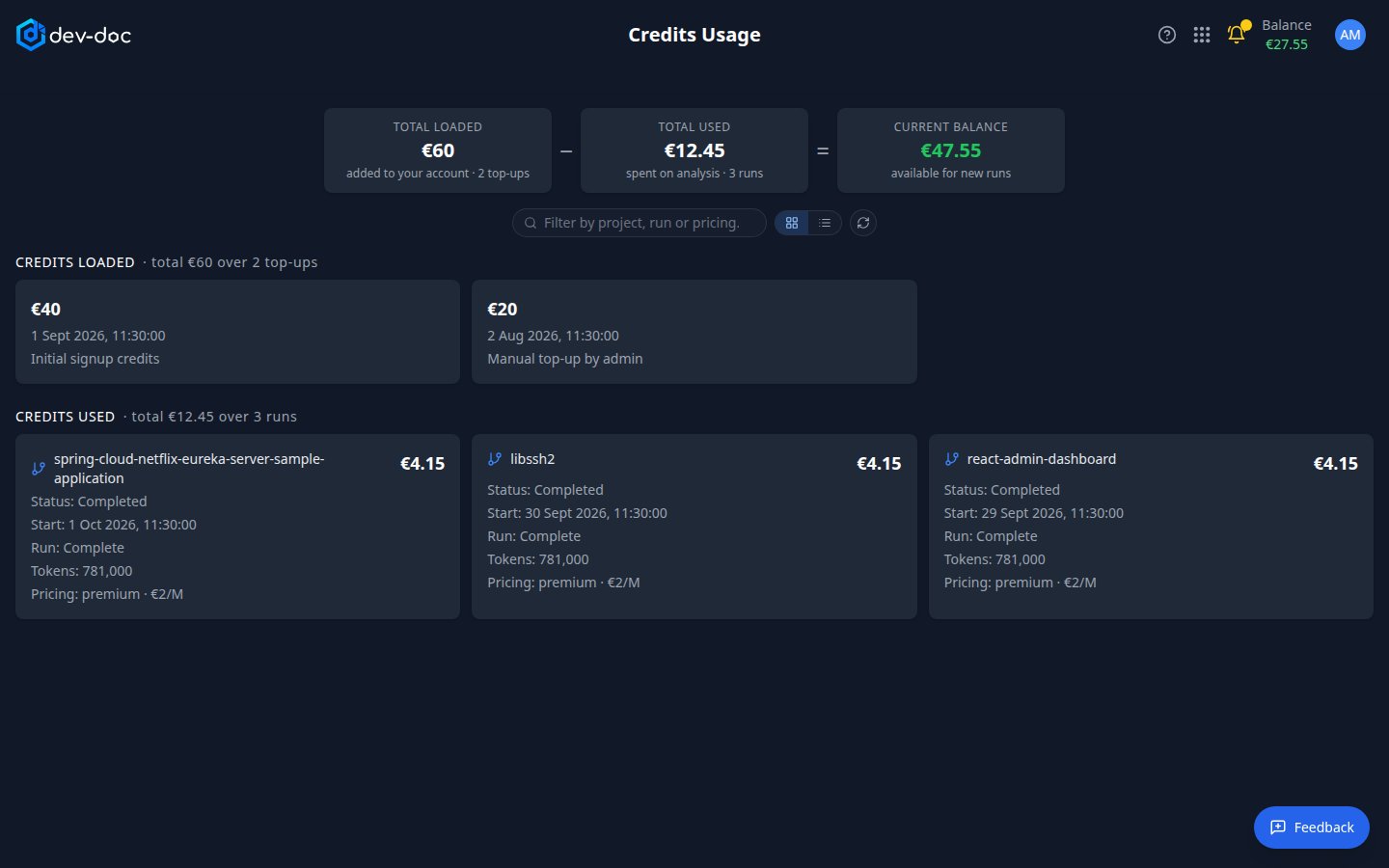
- Summary — reads left to right as a sum: Total loaded (everything ever added to your account) minus Total used (everything your runs have cost) equals your Current balance. Each figure says how many top-ups or runs it adds up. A red balance means the account is overdrawn.
- Filter and refresh — filter the runs by project name, run type or pricing model; refresh reloads the figures.
- Credits loaded — every addition to your balance — the starter credits, purchases and any top-ups — with date and a comment.
- Credits used — one line per analysis run: cost, start time, run type (complete or incremental), project and its status, the amount of AI text processed (tokens) and the pricing model with its rate. Long histories are paged.
- Card or table view — show both lists as cards (the default) or as tables. In the table view each table ends with a total row that says exactly which lines it adds up; while a filter is active, the Credits Used total covers only the matching runs and also shows the all-runs figure. Your choice is remembered.